


(Continued from Part 1. This concludes the article.)
LinuxLite Attempt One
Since I was more satisfied with the Linux apps that I was running under Chrome OS Flex than with the native Chrome apps, I decided to experiment with another Linux OS. I went to www.linuxliteos.com and attempted to downloaded LinuxLite 7.4 . That was easier said than done. That site was so choked with ads and deceptive links leading to other software that it was virtually impossible to find a link leading to the correct download. After more than 30 minutes of searching, I finally gave up and decided to try another Linux OS.
Linux Mint Xfce Attempt One
I went to www.linusmint.com/download.php and selected the Xfce Edition. From there I selected the Clarkson University download site. I then used Rufus to create an installation disk. I then started Mint in compatibility mode and ran it from the USB drive to test the web browser.
The Firefox browser that came with Mint did not give impressive results, although in general Mint provided snappier performance than Chrome OS Flex. I decided to try another Linux OS.
LXLE Linux
LXLE Linux was reputed to work especially well with older hardware. Unfortunately, I subsequently discovered that it has been discontinued.
LinuxLite Attempt Two
The reviews of LinuxLite were so positive that I decided to try again to find a download link. I finally found one at https://mirror.clarkson.edu/linux-lite/isos/7.4/ . I then used Rufus to create an installation disk, and risked running the live system from the USB drive in the Acer notebook. The interface was much more visually appealing than the Mint interface in compatibility mode. I was able to connect to WiFi, and the Chrome browser in LinuxLite ran much better than it did in Chrome OS Flex.
I then tried running the live system from the USB drive in the Toshiba notebook. It took a lot longer to load, but I was impressed to find that using the preinstalled VLC Media Player, it was able to play DVD videos.
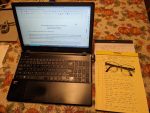 I was able to use the preinstalled LibreOffice to work on a couple of articles for SurvivalBlog. But over the course of time, the system began to crash more and more frequently while running the live system from the USB drive. Chrome was still running slowly in Chrome OS Flex, so I decided to try a hard disk install of LinuxLite on the Toshiba notebook. I backed up the articles that I had been writing on a second USB drive, shut down the Toshiba, inserted the Linux Lite install USB in a slot, and turned on the computer.
My first install attempt failed. And the second. And the third. And the next and the next . . . . Eventually I had spent almost nine hours on eleven different installation attempts. All I succeeded in doing was erasing the hard drive so that I could no longer run Chrome OS Flex. I was not a happy camper.
Linux Mint Xfce Attempt Two
By this time I had five articles written in LibreOffice format (.odt) that I wanted to finalize and submit the next day, and no system running LibreOffice. I decided to give Linux Mint Xfce one more try.
I put the install USB drive in a slot in the Toshiba and started the computer. I restarted when instructed, removed the installation media when instructed, and then needed to perform a hard shut-down and restart. At that point Linux Mint Xfce gloriously started.
I was quickly able to install our printer, play a DVD video, and edit and submit an article to SurvivalBlog. I was extremely pleased with its initial performance.
Everything ran far more smoothly and more rapidly on the Toshiba than it had under the previous Windows 10 OS. It was not lightning fast, but it was no longer slower than molasses in January. It now provided quite satisfactory performance instead of woefully and pitifully inadequate performance.
The interface appears slightly dated, but I am slightly dated too, so I feel right at home.
I copied all my documents and photos from the Acer using an external hard drive and updated the desktop background to show a picture of my daughter, son-in-law and grandchildren.
My Senior Pastor had told me about a Bible program called STEPBible. I went to their website, and discovered that they had offline versions for both Windows and Linux. I downloaded the Linux install file, double clicked on it, selected “Open Package”, selected “Install Package” and soon had the app installed on my computer. It includes most of the features that I used most often in Online Bible, and has a nicer looking interface. I highly recommend the app.
FireFox continued to give inadequate performance as a web browser. I installed Chrome for Linux, and it worked better than FireFox. I then tried Opera for Linux, and it performed even better ( www.opera.com ). I made it my default browser.
Further Adventures
By this time, I had become so preoccupied with OS testing that it distracted me from work that I should have been doing on other reviews. For example, we had another old notebook laying around, an ASUS E203M with a Celron N4000 processor and 2GB RAM. I installed Mint on it, changed the browser to Opera, and found that it was no longer too slow for practical use.
Back on the Toshiba, I noted that StepBible lacked Online Bible’s cross-reference capabilities. I decided to try to install Online Bible on the Toshiba using Wine, a Linux Windows emulator. The Wine installation took about 10 minutes, but I could not figure out how to use it to install Online Bible.
I attempted to install PlayOnLinux as a graphic front end for Wine to make it easier to use. It did not work on the Toshiba.
Experiments with Android
By this time I had also become frustrated with the occasional slow operation of Opera. I had noticed that websites written for mobile browsers seemed to demand less resources than websites written for standard browsers. I wondered if I could run Android under Linux and use a mobile browser to speed things up. I had also discovered that there was an Android version of Online Bible, so that would be icing on the cake.
With this end in mind, I tried to install Waydroid. I discovered that the Toshiba CPU would not support some processes necessary to the operation of that software.
I next tried to install Anbox without success.
Genymotion Desktop for Linux came next. I was able to install the software, but was not able to start any virtual Android devices.
My next attempt involved Android Studio AVD. I was able to install the software, but once again was unable to start any virtual Android devices.
My conclusion was that the Toshiba was not powerful enough to run an Android emulator.
Online Bible, Again
I had gained enough experience using Terminal while attempting to install the Android emulators, that I was ready to try another Online Bible installation using Wine.
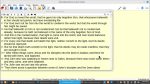 I reinstalled Wine, started Terminal, changed my directory to Downloads where the Online Bible installation program was located. I typed “wine install_advance_6.22.00.00.exe” to run the installation program. Online Bible quickly installed. During the installation process I needed to tweak a few pathways and create a few directories, but ultimately the process was a success.
Browsers, Browsers, Everywhere
Now that the Bible software issue was settled, I turned my attention back to the web browser. Opera was faster than the other browsers I had tried so far, but it still was not fast enough.
After an internet search for fast Linux web browsers, I decided to give Thorium a try. But the installation failed due to the lack of some necessary files.
Next, I decided to take a look at the various browsers that came packaged with Linux Mint. I opened the Software Manager and searched under the heading “browser”. There were fifteen applications on the list that looked worthy of further research.
Two of the browsers were listed as mobile apps. I decided to try them first on the theory that mobile web pages might be less demanding of system resources than regular web pages.
The first of the two mobile browsers was Kumo. I installed it, launched it, and nothing happened. I restarted the system and tried again. Still nothing happened. I uninstalled Kumo.
The second mobile browser was Angelfish. I installed it and launched it. It took a long time to open and then crashed. I uninstalled Angelfish.
Another browser, Dillo, specified that it was designed for older or slower systems. I installed it and launched it. It opened quickly, and was lightning fast. The problem was that it did not display pages as they were intended to be displayed. It displayed text, but most formatting was omitted, and graphics and videos did not load. It was better than nothing, but not much better. I uninstalled Dillo.
The next browser that I installed was Epiphany. I launched it. It seemed to run reasonably well at first. Then I went to the Benchmade website, which I remembered as one of the more resource-demanding websites that I had visited recently. It ran horribly, and eventually crashed the system. I uninstalled Epiphany.
 The next browser that I installed was Brave. I launched it. It was somewhat slow to open. But once it opened, its performance appeared very promising. I went to the Benchmade website. It rendered it impressively well. Over the course of the next couple of days, I did some extensive web browsing using Brave. I was fully satisfied with its performance.
At that point, I was satisfied with the performance of my test platform in every way. I decided it was time to take the plunge and install Linux Mint Xfce and the other programs that I had tested and approved onto the Acer.
Minting the Acer
I inserted the Linux Mint Xfce installation USB into a slot on the Acer, started the computer, and went through the installation process.
The next day I spent a couple of hours copying files from the Toshiba test platform and transferring them to the hard drive of the Acer via a USB flash drive. I tweaked some settings like the clock display and the desktop wallpaper. Then I opened the Software Manager and installed the Brave web browser.
The Acer is blazing fast in comparison with the Toshiba test platform. Applications that provided adequate performance on the Toshiba provided good performance on the Acer.
Next, I opened the Software Manager, installed Wine, and then ran the Online Bible installation file under Wine. The installation was a success.
Since I now knew that Online Bible was available for Android, I also installed it on my phone. I am very happy to have this useful Bible study tool available to me wherever I go.
Grammar Checking
After submitting some articles using LibreOffice Writer and later reading them in Microsoft Word, I noticed that the grammar checker on Word was catching some errors that the checker on Writer missed.
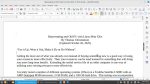 After some online research, I added the WritingTool extension for LibreOffice from https://writingtool.org/index.php/en/ . It has done an adequate job of catching most of the same obvious grammatical errors that the grammar checker in Word catches. It does not catch absolutely all of my errors. I decided that I could live with that, and I hope that you can too.
Conclusions
The installation of Linux Mint Xfce on my Acer is like having a new computer. It is much faster than it was when running Windows 10, and it is good to know that it is less likely to become bogged down in the future by a constant stream of bloated updates.
I highly recommend Linux Mint Xfce for older systems that are having trouble running Windows 10 and above. Through five months of regular use, it has greatly enhanced my productivity while using my computer.
There are other alternatative OSes available for free on the Internet. Depending on the configuration of your system, one of these other OSes might work even better for you. Before investing in a new computer, you might want to give an alternate OS a try.
Disclaimer
I did not receive any financial or other inducement to mention any vendor, product, or service in this article.
Read the full article here